
Random Vibration Test Advanced Tutorial
Spectral Dynamics Panther Control System
Modern Vibration Test Control System
1. INTRODUCTION & SAFETY OVERVIEW
About This Tutorial
This tutorial provides comprehensive, step-by-step instructions for conducting a basic random vibration test using the Spectral Dynamics Panther control system. The Panther system represents over 80 years of vibration control expertise, being built by the company that invented closed-loop digital vibration control in 1969.
Critical Safety Notice
WARNING: Random vibration testing can damage equipment and injure personnel if not conducted properly. Safety is paramount at all times.
BEFORE PROCEEDING:
- Ensure all personnel are trained in vibration test procedures
- Review all safety protocols with your facility safety officer
- Verify emergency stop procedures are understood by all personnel
- Confirm shaker system ratings are adequate for your test
- Never leave a running test unattended
Safety Features of the Panther System
The Panther system provides industry-leading safety through:
• Real-time monitoring of over a dozen critical parameters
• Monitoring frequency: Up to 25 times per second
• Hardware watchdogs that provide redundant safety protection
• Automatic abort thresholds with multiple safety tiers
• Control Signal Loss Detection prevents over-testing if sensors fail
• Built-in safety logic continuously validates test conditions
Superior Capability: Unlike many competitive systems that check safety parameters once per second or less, Panther's 25 Hz monitoring rate ensures that unsafe conditions are detected and addressed within 40 milliseconds—providing unparalleled protection for your equipment and personnel.
2. PRE-TEST SAFETY INSPECTION
STOP: Complete this entire checklist before powering on any equipment
Physical Inspection Checklist
Shaker System Inspection
☐ Shaker mounting: Verify shaker is securely bolted to foundation
☐ Armature movement: Check that armature moves freely
☐ Fixture attachment: Confirm test fixture is properly attached
☐ Load verification: Verify DUT weight is within specifications
☐ Clearance check: Ensure adequate clearance (minimum 1 inch)
Electrical Safety
☐ Cable routing: Check cables are routed away from moving parts
☐ Cable security: Verify accelerometer cables are secured
☐ Connector tightness: Verify all BNC connectors are finger-tight
☐ Ground connections: Confirm proper ground connections
Accelerometer Installation
☐ Mounting location: Verify accelerometers at control points
☐ Orientation: Verify correct test axis orientation
☐ IEPE power: If using IEPE sensors, verify 4mA requirement
3. SYSTEM STARTUP & HARDWARE VERIFICATION
Power-On Sequence
CRITICAL: Follow this exact sequence to ensure safe startup
1. Verify amplifier power is OFF
- Confirm power switch in OFF position
- Verify no drive signal present
2. Power on Panther hardware modules
- Power on Panther data acquisition modules
- Wait 30 seconds for initialization
- Observe front panel LEDs—all should be steady
3. Start Panther software
- Launch Panther Random Control application
- Wait for software to fully load (15-30 seconds)
4. Verify hardware connection
- Software should detect Panther hardware automatically
- Log box will indicate if hardware fails to connect.
Initial Software Check
Navigate: File Menu → Open
- If first test, start with factory checkout test (Located in the folder: "C:\Users\Public\Spectral Dynamics\RCTs")
- Immediately perform 'Save As' to create your own test file
- CRITICAL: Never modify factory test files
Suggested naming: ProjectName_TestType_Date_Rev
Example: Widget_RandomVib_20251027_R1.ran
4. CHANNEL CONFIGURATION
Understanding Channel Types
The Panther system supports five channel types:
- Control: Primary feedback channels that drive the control loop (required)
- Measure: Monitor-only channels for data collection
- Limit: Channels that can assume control if response exceeds profile
- Limit RMS: Channels that can assume control if response exceeds defined bandpass Rms
- Abort: Channels that terminate test if threshold exceeded
Channel Setup Procedure
Navigate: Setup Menu → Channels
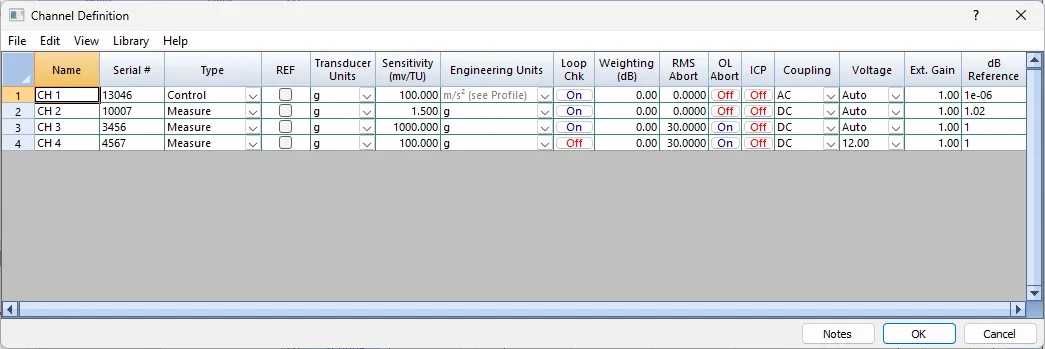
Step 4.1: Assign Channel Types
- View all channels in the channel table
- Click/Select Type for each channel to use; ‘Inactive’ is off
- Minimum: 1 Control channel required; Verify Loop Check checkbox is ENABLED
- Recommended: 1 Control + 2-4 Measurement channels
Step 4.2: Configure Channel Names
Use descriptive names identifying physical location:
Examples:
• Shaker_Control_Z
• DUT_TopCorner_NW
• Fixture_Center_Ref
Step 4.3: Enter Channel Serial # (Optional)
Enter serial number of transducer for traceability of data source(s)
Step 4.4: Enter Accelerometer Sensitivity
CRITICAL: Accurate sensitivity values are essential for correct test levels
- Locate accelerometer calibration certificate
- Find sensitivity value (typically in mV/g)
- Enter numerical value in Sensitivity field
Example Configuration:
Channel 1: PCB 352C33, 100.1 mV/g → Enter '100.1'
Channel 2: Endevco 2250A-10, 500 mV/g → Enter '500'
Channel 1: PCB 307M02, 100 g/volt → Enter '10' (Remember entry is in mV/g)
Step 4.5: Weighting (dB)
Allows specifying a channel weighting factor (in dB) to provide relative a channel data bias when the data is combined to calculate an averaged level value for control purposes. (Not typically used in standard test configurations).
0 dB assumes uniform weighting
Step 4.6: RMS Abort
The RMS level entered in this entry is treated as an absolute Abort level independent from any control average or profile generated overall level Abort setting. This setting represents an absolute allowable upper RMS level limit on a per channel basis. Be sure that the highest expected level allowed for the channel measurement will fall below the entered value otherwise a channel abort will be triggered. An entry of 0.0 in this field will disable the abort level option for the selected channel.
Step 4.7: OL Abort
This channel specific option will trigger a test abort if a voltage overload is detected on the channel. Note that an overload (depending on severity) can cause a truncation of the measured channel data value. Such truncations can be utilized (for example if using multiple control channels) and critical control calculations can be compromised due to using lower than actual measurement values. There are some cases where overloads can be tolerated (such as high sigma random type events) and aborting the test may be considered too severe an option. Enabling this option will force a test abort upon detection of any channel data overload. For example, if using a Measurement channel, then an overload on that channel would not affect the control calculations so some overloads could be tolerated.
Step 4.8: Configure IEPE Power
For IEPE/ICP accelerometers (most modern accelerometers):
- Enable ICP power: Click checkbox in 'ICP' column (CRITICAL: ICP requires AC coupling)
- Panther provides: 4 mA constant current at 24V
Superior Capability: Panther's TEDS (IEEE 1451.4) compliance allows automatic sensor recognition—simply connect a TEDS-compliant sensor and Panther automatically configures sensitivity, serial number, and calibration data.
Step 4.9: Set Coupling
AC Coupling (Recommended):
- High-pass filter with 3dB cutoff at 0.2 Hz
- Blocks DC offsets
- REQUIRED when using ICP power
- Special software DC removal (‘-MN’) for both AC and DC coupling options to numerically remove
- Any offsets after the selected hardware coupling options
Default recommendation: AC coupling for random vibration tests
Step 4.10: Configure Voltage Range
Auto Range (Recommended):
- Select 'Auto' from voltage dropdown; Panther automatically optimizes input range
- User Selectable fixed input full scale voltage range selections available otherwise
Superior Capability: Continuous auto-ranging maintains optimal dynamic range throughout test—a feature not available in many competitive systems.
Step 4.11: Ext Gain
This field allows specification of any external amplifier/signal conditioning that would affect the overall channel measurement value. This gain factor is a simple linear factor (non 0) that represents the amplification/attenuation of any external equipment.
Step 4.12: dB Reference
This is the reference level (in engineering units) for the channel data. This is the reference that will be utilized when calculating any data derived parameter that will be represented as a decibel (dB) value. For example, when using dB as a Y axis display selection.
Equation: dB = 20.0 x Log10( Value/dB_Reference)
5. ACQUISITION SETUP
The Acquisition Setup defines how Panther digitizes and processes input signals. This section determines frequency bandwidth, resolution, and averaging parameters. This dialog is located under the Setup\Test menu selection option.
Navigate: Setup Menu → Test→ Acquisition (Tab)
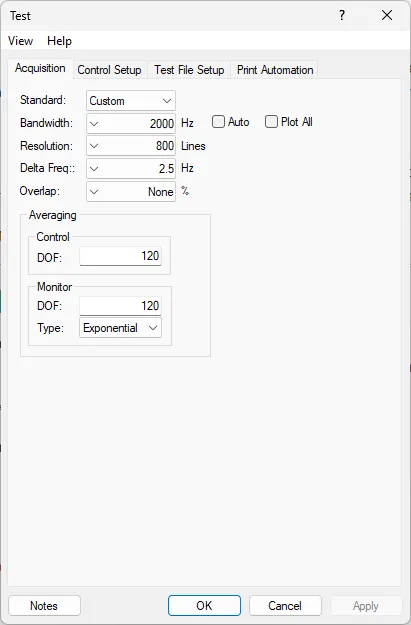
Step 5.1: Configure Acquisition Input Stream
For Custom setup selections:
Bandwidth (Frequency Range):
- Defines the maximum frequency of interest
- Panther capability: Up to 102,000 Hz (102 kHz)
- Common random vibration range: 2,000 Hz or 5,000 Hz
Selection guidelines:
- Choose bandwidth above highest frequency in test profile
- Example: For profile ending at 2000 Hz, select 4000 Hz bandwidth
Step 5.2: Set Lines of Resolution
Lines of Resolution determines frequency bin spacing:
Calculation: Δf = Bandwidth / Lines of Resolution; User can enter either delta frequency or lines of resolution
Common resolution settings:
- 800 lines: Good balance of speed and resolution
- 1600 lines: Higher resolution for detailed analysis
- 3200 lines: Very high resolution (slower updates)
Superior Capability: Panther processes full resolution across all channels simultaneously with no compromises—competitive systems often reduce resolution when using multiple control channels.
Overlap (Optional)
Use of overlap can increase the control responsiveness by decreasing time between control changes.
Step 5.3: Averaging Method
Exponential Averaging (Required for Control, Optional for Measure channels):
- Weighted toward recent data
- More responsive to signal changes
- Defined by DOF setting
Linear Averaging (Measure channels)
- Uniform Weighting of all included data
- More indicative of the average signal level(s)
- Defined by DOF setting; Averaging will stop once the required count is reached
Step 5.4: Data Storage Settings
Navigate: Setup Menu → Data Storage
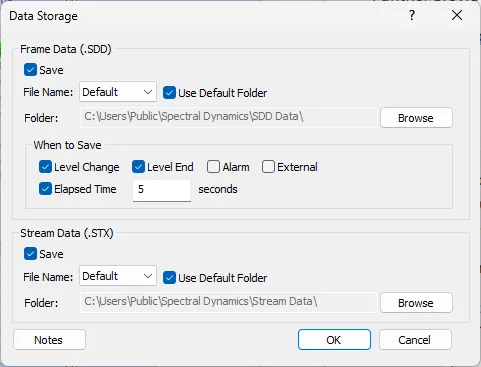
Frame Data (.SDD)
- Data save options for frame based calculated functions
- File Name and location (folder) entries (SDD type files)
- Stored data can easily be recalled/replayed via Post Analysis Replay function in GTX display functions
When to Save Options
- Level Change(s)
- End of a test Level
- Alarms (if detected)
- External (such as User Request)
- Elapsed Time (based on specified user test time interval);
Stream Data (.STX)
- Select File Name type and storage location folder (ensure adequate disk space)
Stream files (STX) can be easily reprocessed by application using the Setup->Input options
Frame based data storage files (SDD) can be recalled/displayed using the GTX Post Analysis option selection
Superior Capability: Panther streams ALL channel data continuously to disk with zero gaps. No data loss, even during hours-long tests. Full-resolution time history available for post-processing—a capability unavailable in many competitive systems.
Example Acquisition Configuration
Basic Random Vibration Test (20-2000 Hz profile):
- Standard: Custom
- Bandwidth: 4000 Hz (headroom above 2000 Hz)
- Resolution: 800 lines (6.25 Hz spacing)
- Overlap: 50%
- Averaging: Exponential (Control); Exponential (Monitor)
- DOF: 120, 120
- Storage: Elapsed Time [60 seconds]; Level Change
- Stream to Disk: Enabled
6. PROFILE CREATION
The Profile defines the target vibration spectrum—the 'recipe' for your test. Panther's profile system uses frequency/amplitude breakpoints connected by defined slopes.
Navigate: Setup Menu → Profiles
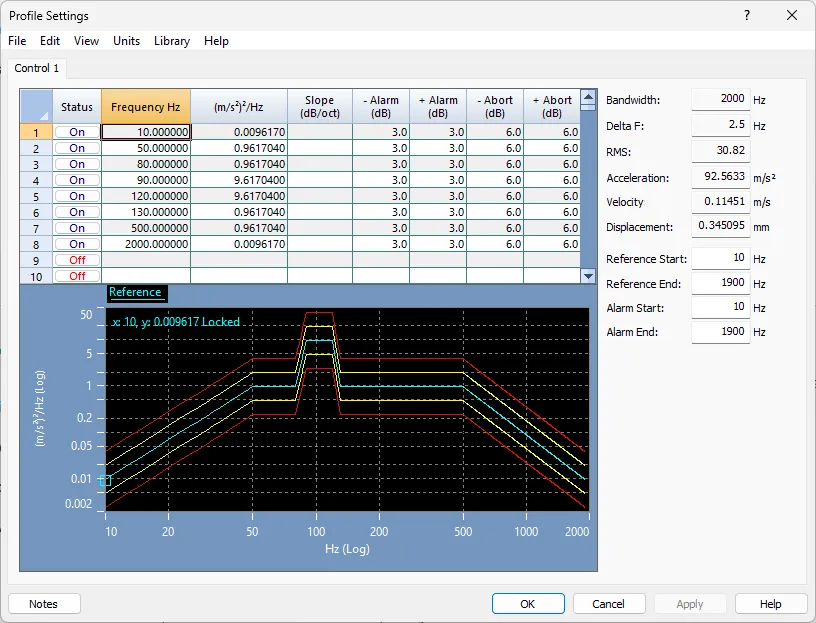
Understanding PSD Profiles
Power Spectral Density (PSD):
- Describes vibration energy distribution across frequency
- Units: g²/Hz (acceleration squared per Hertz)
- Defines continuous spectrum from start to end frequency
Step 6.1: Define Profile Breakpoints
Column Definitions:
- Status: On/Off toggle for each line
- Frequency (Hz): Breakpoint frequency
- PSD (g²/Hz): Amplitude at that frequency
- Slope: Defines transition to next point
- Alarm (dB): Alarm tolerance (yellow lines)
- Abort (dB): Abort tolerance (red lines)
Example Profile Entry - Basic Flat Spectrum
Common MIL-STD-810 style profile (20-2000 Hz, 0.04 g²/Hz):
|
Status |
Frequency |
PSD |
Slope |
Alarm |
Abort |
|
On |
20 Hz |
0.04 |
0 dB/Oct |
+3/-3 |
+6/-6 |
|
On |
2000 Hz |
0.04 |
— |
+3/-3 |
+6/-6 |
Result: Flat 0.04 g²/Hz spectrum from 20-2000 Hz
Calculated Total: gRMS ≈ 8.9 grms
Step 6.2: Set Alarm and Abort Tolerances
Alarm Lines (Yellow on graph):
- First warning threshold
- Generates warning message in log (Once above the Limit count)
- Test continues running
- Typical values: ±3 dB
Abort Lines (Red on graph):
- Outer safety limits
- Test automatically terminates if (Abort limit count) exceeded
- Typical values: ±6 dB
Superior Capability: Panther monitors these limits up to 25 times per second across all frequency lines—providing the fastest abort response in the industry to protect your equipment.
Step 6.3: Verify Against Shaker Limits
CRITICAL SAFETY CHECK: Verify calculated peaks against shaker specifications
Example Shaker: 5000 lbf system
- Maximum Acceleration: 100 g
- Maximum Velocity: 70 in/sec
- Maximum Displacement: ±1.0 inch
Your Profile Check:
- gRMS: 10.5 g
- Peak Acceleration: 31.5 g → ✓ OK (under 100 g limit)
- Peak Velocity: 45 in/sec → ✓ OK (under 70 in/sec limit)
- Peak Displacement: 0.85 inch → ✓ OK (under 1.0 inch limit)
7. SCHEDULE CONFIGURATION
The Schedule defines the time-based execution of your test, including level progression (ramping) and duration.
Navigate: Setup Menu → Schedules
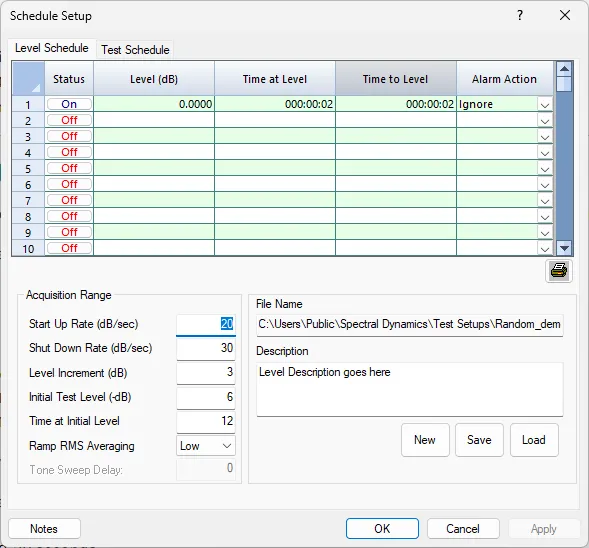
Step 7.1: Configure Startup Parameters
Startup Level:
- Level to ramp to after successful loop check
- Expressed in dB below full reference level
- Typical value: -10 to -20 dB
Time at Startup Level:
- Hold duration at startup level before proceeding
- Allows system stabilization
- Typical value: 10-30 seconds
Recommended Settings:
- Initial Test Level: -12 dB
- Time at Initial Level: 00:20 (20 seconds)
Step 7.2: Configure Level Increment
Level Increment (dB):
- Maximum step size when ramping between levels
- Prevents sudden jumps in drive amplitude
- Typical value: 1-3 dB per step
- Recommended: 2 dB for smooth, safe ramping
Step 7.3: Define Test Duration
Test Duration Entry (Format: HH:MM:SS)
Examples:
- '00:10:00' = 10 minutes
- '01:00:00' = 1 hour
- '00:15:00' = 15 minutes
Common Test Durations:
- Screening: 10-30 minutes
- Qualification: 1-4 hours
- Acceptance: 10-60 minutes
Example Complete Level Schedule
Basic 15-Minute Random Vibration Test:
Startup Parameters:
- Initial Test Level: -12 dB
- Time at Initial Level: 00:20
- Level Increment: 2 dB
Test Schedule:
- Level: 0 dB (full reference level)
- Duration: 00:15:00 (15 minutes)
- Loops: 1
Expected Sequence:
- Loop check (automatic)
- Ramp to -12 dB
- Hold 20 seconds at -12 dB
- Ramp to 0 dB in 2 dB steps
- Hold 15 minutes at 0 dB
- Ramp down at 2 dB/sec
- Test complete
8. SAFETY LIMITS SETUP ( Safety, Shaker and Loop Check)
Navigate: Setup Menu → Limits
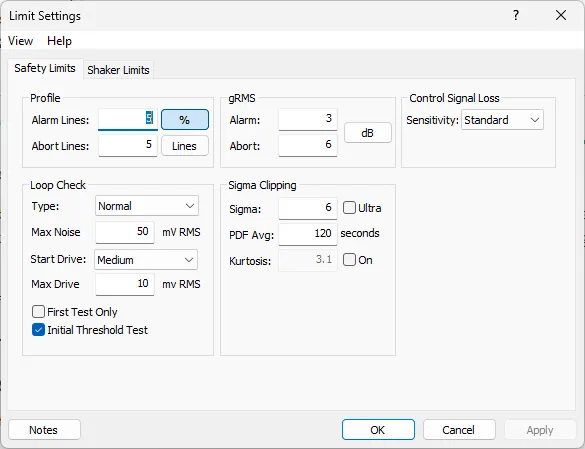
Safety Limits provide automated protection for equipment and test article. Panther's comprehensive safety system continuously monitors multiple parameters and takes immediate action when thresholds are exceeded. The limit parameters are organized into “groups” (Tabs on Limits dialog): Safety, Shaker and Loop Check.
CRITICAL: Proper safety limit configuration is mandatory before running any test
Understanding Panther Safety Architecture
Superior Capability: Multi-Tier Safety System
Panther implements multiple independent safety checks:
- Profile Tolerance Monitoring: Checks control spectrum against profile limits (Shaker)
- gRMS Monitoring: Overall control vibration level checking (Safety, Profile)
- Control Signal Loss Detection: Verifies sensor connectivity (Loop Check)
- RMS Abort Limits: Control RMS spectral threshold monitoring (Safety, Profile)
- RMS Abort Limits: Per-channel absolute RMS threshold monitoring (Channel)
- Hardware Watchdogs: Independent hardware-based protection (Profile Lines)
All monitored up to 25 times per second—industry leading.
Step 8.1: Profile Tolerance Limits
Alarm Lines (Yellow on profile graph):
- Entry format: Number of lines OR Percentage of lines
- Example: '10 lines' or '2%'
- Recommended: 1-2% of total lines
Abort Lines (Red on profile graph):
- Entry format: Number of lines OR percentage
- Example: '20 lines' or '3%'
- Recommended: 2-5% of total lines
Step 8.2: gRMS Limits
Overall control RMS monitoring provides coarse-level protection (in addition to the spectral line threshold)
Warning when total acceleration exceeds threshold. Typical value: +3 dB
Automatic shutdown when exceeded. Recommended: +6 dB (good safety margin)
Step 8.3: Control Signal Loss Detection
CRITICAL SAFETY FEATURE
Purpose: Detect and respond to accelerometer detachment, cable breaks, or sensor failures
Standard (Highly Recommended):
- Most comprehensive protection
- Measures ambient noise with drive “OFF” (drive fully attenuated)
- Drive must exceed noise by 6 dB (threshold value)
- Monitors RMS at each control level
- Aborts if RMS drops 3 dB below stored threshold value
Select: Normal (from dropdown menu)
Additional Loop check procedures exist for cases of noise or unsteady control inputs
Step 8.4: Loop Check Parameter Settings
Loop Check verifies closed-loop operation before test begins:
- Type: Normal (recommended for routine tests)
- Averaging: Exponential (better noise rejection)
- Max Noise: 30 mV (typical)
- Max Drive: 1500 mV (prevents runaway)
Example Complete Safety Limits Configuration
Profile Tolerances:
- Alarm Lines: 2% (16 lines for 800-line resolution)
- Abort Lines: 3% (24 lines for 800-line resolution)
gRMS Limits:
- Alarm: +3 dB
- Abort: +6 dB
Control Signal Loss:
- Mode: Standard
Loop Check:
- Type: Normal
- Averaging: Exponential
- Max Noise: 30 mV
- Max Drive: 1500 mV
9. CONTROL SETUP
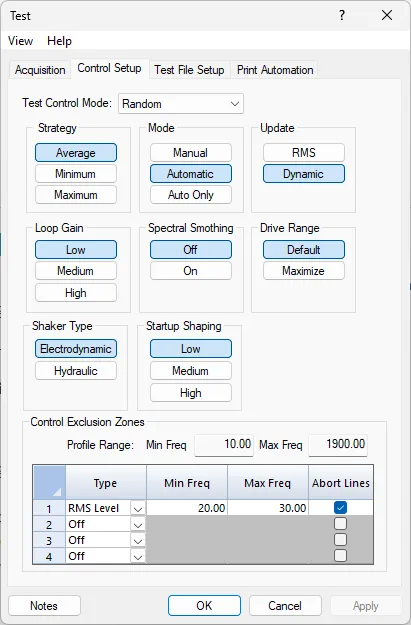
Control Setup defines how Panther's adaptive algorithms manage the drive signal to maintain target spectral levels. Proper control configuration ensures stable, accurate testing.
Navigate: Setup Menu → Test → Control Setup (Tab)
Understanding Panther Adaptive Control
Panther continuously:
- Generates random drive signal
- Measures response at control channels
- Compares measured control spectrum to target profile
- Adapts drive to minimize both spectral and overall level errors
- Updates at high rate (5-10 Hz typical)
Step 9.1: Control Strategy
Average (Recommended):
- Arithmetic average of all control channel PSDs
- Used as composite control signal (Control channel combining methodology)
- Selection: Average (Best for most applications)
Step 9.2: Control Mode (Level/Schedule operational mode)
Auto Only (Recommended):
- Test starts in automatic control mode
- Operator cannot switch to manual during test
- Best for production testing, unattended operation
- Selection: Auto Only
Step 9.3: Update Mode
Dynamic (Highly Recommended):
- Continuous adaptive drive shaping (Dynamic Update mode)
- Responds to changing system dynamics
- Real-time loop corrections (Level only if using RMS update)
- Selection: Dynamic (always use for random vibration)
Superior Capability: Panther's dynamic update mode uses proprietary adaptive algorithms that continuously optimize drive shaping—providing the tightest profile tracking in the industry, typically within ±1 dB across the full frequency range.
Step 9.4: Additional Settings
- Loop Gain: 0 dB (unity gain—good starting point)
- Spectral Smoothing: Off (no smoothing—maintains fidelity)
- Drive Range: Default (sufficient for most tests)
- Shaker Type: Electrodynamic (standard lab shaker)
- Startup Shaping: Medium (balanced approach)
Example Control Setup Configuration
Standard Random Vibration Test:
- Control Strategy: Average
- Control Mode: Auto Only
- Update Mode: Dynamic
- Loop Gain: 0 dB
- Spectral Smoothing: 0
- Drive Range: Default
- Shaker Type: Electrodynamic
- Startup Shaping: Medium
10. LOOP CHECK PROCEDURE
Loop check verifies closed-loop operation before starting the test. This critical safety procedure ensures all components are connected and functioning properly. The Loop Check procedure will be automatically invoked at the Test Startup and applied to all channels marked “Loop Check” under the Channel Setup dialog. The only case when Loop Check will be bypassed is if the “First Test Only” option is enabled under the Setup->Limits->Safety Limits| Loop Check Group .
CRITICAL: Never skip loop check. It prevents equipment damage and unsafe conditions.
What Loop Check Does:
- Measures ambient noise with drive OFF
- Applies low-level drive signal
- Verifies control channels exceed noise by 6 dB
- Stores baseline RMS values for each control channel
- Establishes control signal loss thresholds
Duration: Typically, 30-60 seconds
Test / Pre-Loop Check Verification
DO NOT TOUCH ANYTHING during loop check—let it run automatically.
Monitor Loop Check Progress
Phase 1: Ambient Noise Measurement (10-15 seconds)
- Drive remains OFF
- Software measures background noise
- Establishes noise floor baseline
Phase 2: Drive Application (20-30 seconds)
- Low-level drive signal applied
- Software increases drive until all control channels exceed noise by 6 dB
- Stores RMS baseline for control signal loss detection
Phase 3: Verification (5-10 seconds)
- Software verifies all control channels meet criteria
- Message log: 'Loop check successful'
- System ready for test start
Successful Loop Check:
- Message log shows: 'Loop Check Complete'
- 'All control channels passed'
- 'System ready for test'
- All control channels: Green or 'PASS'
Failed Loop Check:
- 'Loop Check Failed'
- 'Control signal not detected'
- 'Excessive ambient noise'
→ STOP—Do not proceed. Investigate issue.
11. TEST EXECUTION PHASE
This section guides you through monitoring and managing the test after Loop Check has completed.
Understanding Test Sequence
Final Pre-Start Checklist
MANDATORY SAFETY VERIFICATION—Read every item:
☐ Test area clear: No personnel within safety perimeter
☐ Safety barriers: In place if required
☐ Emergency stop: Location identified and accessible
☐ Hearing protection: Available and in use if required
☐ Amplifier status: Normal operation, no faults
☐ DUT inspection: Final visual check—everything secure
☐ Data storage: Adequate disk space available
☐ Test parameters: Reviewed and verified correct
Before initiating test, verify:
☐ Amplifier power OFF
☐ All accelerometers properly mounted
☐ All cables connected and secure
☐ Test area clear of personnel
☐ DUT properly secured to fixture
☐ Shaker armature free to move
☐ Emergency stop accessible
- Turn on amplifier power switch
- Wait 30 seconds for amplifier warmup
- Observe amplifier status lights (should show normal/ready)
- Verify no error messages
DO NOT START TEST until all items verified.
The automatic test sequence:
- Startup Phase: Ramp to initial level, hold for inspection
- Ramp-Up Phase: Ramp from initial to full level
- Full-Level Test Phase: Maintain full level for duration
- Shutdown Phase: Automatic ramp-down to zero
Start the Test
- Locate 'Start' button (prominent green button)
- Click 'Start' (single click only)
- Observe immediate message log responses for system status information
System is now running automatically—do not touch controls unless emergency (use ABORT at any time to stop).
Monitor the Test Startup Phase (after Loop Check has completed)
Initial Level Hold (First 20-30 seconds):
What should happen:
- Drive ramps smoothly to -12 dB (initial level)
- Control spectrum takes shape of reference profile (reduced level)
- System stabilizes
- Holds at initial level for configured time
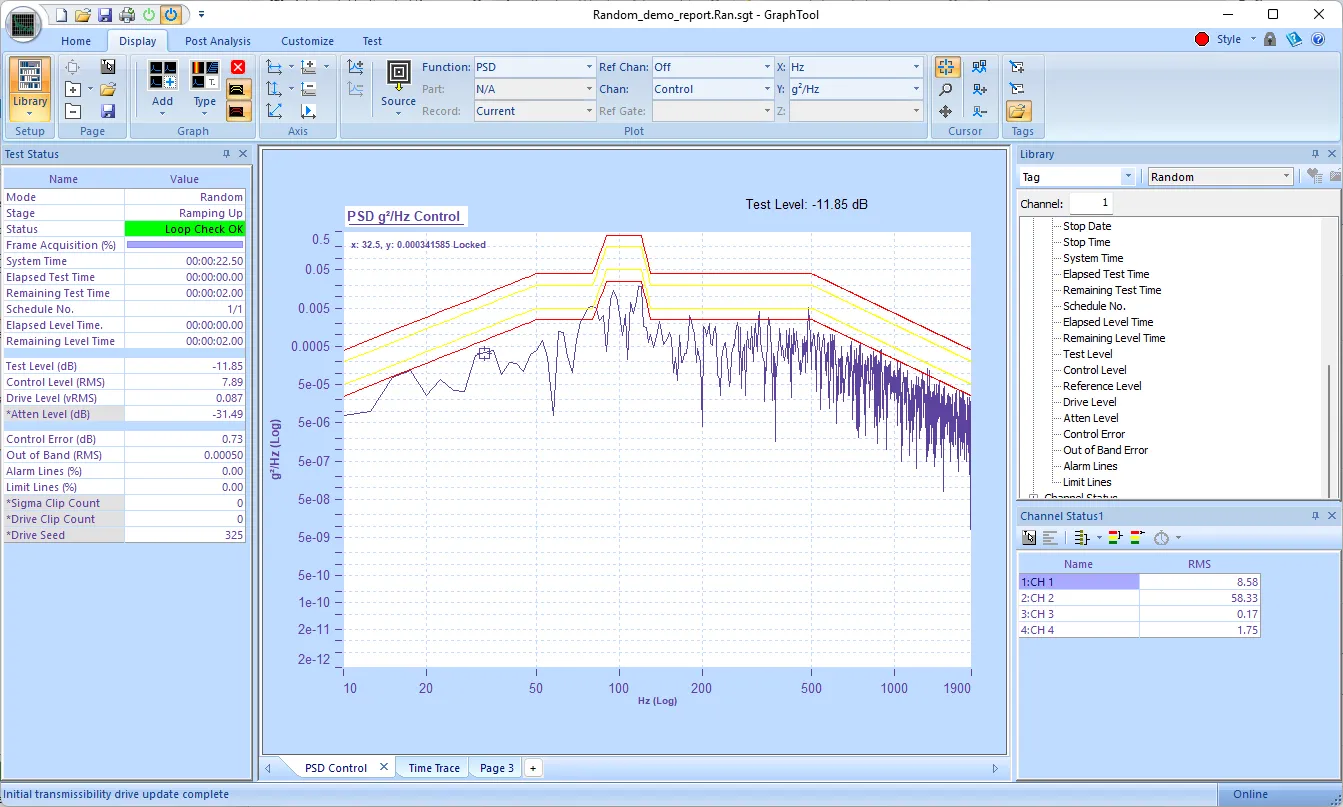
What to observe:
Visual:
- Shaker motion smooth and steady
- No unusual sounds (rattling, banging)
- Accelerometer cables not whipping
GTX Display:
- Control spectrum matches profile shape at -12 dB (initial Test Level)
- Drive output steady at reduced level
- No error messages
Monitor Full-Level Test Phase
This is the main test phase where your specimen experiences the specified environment.
What to observe every 2-5 minutes:
Control Spectrum (PSD Plot):
- Blue trace should closely follow red reference line
- Typically within ±1-2 dB across most frequencies
Superior Capability: Panther typically achieves ±1 dB tracking—better than any competitive system.
Physical Monitoring:
- Shaker operating smoothly
- No visible loosening of connections
- No excessive DUT deflection
- Accelerometer cables secure
Understanding Normal Variations
What's NORMAL during random vibration:
- Control spectrum may vary ±1-2 dB around reference
- Drive level makes small automatic adjustments
- gRMS may vary ±5-10% due to random nature
What's NOT NORMAL (Red flags):
- Alarm messages persisting >30 seconds
- Control spectrum consistently outside alarm lines
- Unusual sounds (banging, rattling, scraping)
- Visible damage or loosening
- Smoke or burning smell
If ANY red flag appears:
- Note the condition
- If severe: Immediately click 'ABORT'
- If moderate: Monitor for 10-15 seconds
- If persists: Click 'ABORT'
Automatic Shutdown
When test duration timer reaches zero:
System automatically:
- Begins shutdown sequence
- Ramps drive down at configured rate (2 dB/sec typical)
- Monitors during ramp-down
- Reaches zero drive (~10-15 seconds)
- Status changes to 'Test Complete'
DO NOT immediately approach shaker—wait 10-15 seconds after motion stops.
12. MONITORING & DATA COLLECTION
Panther provides extensive real-time monitoring and comprehensive data collection throughout the test.
Panther's environment provides:
- Multiple simultaneous plot types
- Fully customizable layouts
- Real-time updates during test
- Industry-best visualization
Data Streaming to Disk. Panther's continuous data recording, Stream File (STX format)
- Records ALL channels continuously
- Zero gaps in data
- Full sample-rate resolution
- Includes all configured streams
Superior Capability: Panther's multi-stream architecture allows simultaneous recording at different sample rates optimized for each channel group—unique flexibility not available in competitive systems.
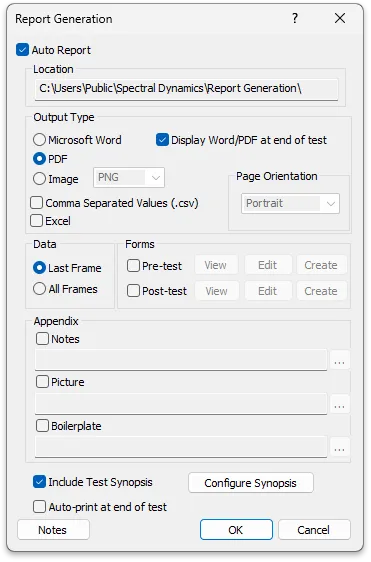
- Test parameters and setup
- Duration and levels
- Control accuracy statistics
- Peak values (acceleration, velocity, displacement)
- Spectral data plots
- Alarm/abort summary
Export formats:
- Microsoft Word (.docx)
- Microsoft Excel (.xlsx)
13. TEST SHUTDOWN
Proper shutdown procedures ensure safety and preserve equipment.
Normal Shutdown (Test Complete)
After automatic test completion:
- Verify test completed successfully
- Do not immediately approach shaker (wait 15-20 seconds)
- Turn OFF amplifier power switch
- System inspection (from distance first)
- Approach and close inspection after amplifier OFF
Emergency Shutdown
If emergency requires immediate stop:
- Click 'Abort' button (first choice—controlled shutdown)
- Press Emergency Stop (if Abort not sufficient)
- Document what happened
14. POST-TEST PROCEDURES
Immediate Post-Test Actions
- DUT Inspection: Thoroughly inspect for damage
- Test Data Backup: Copy test file and stream data
- Equipment Inspection: Check accelerometer mounting
Data Review and Analysis
Panther Analyzer Application:
- Opens recorded stream files
- Performs post-processing analysis
- Generates additional reports
- Exports data to other formats
Documentation
Test report should include:
- Test parameters (profile, duration, levels)
- DUT identification and configuration
- Test results and statistics
- Control accuracy plots
- Any anomalies or deviations
- Pass/fail determination
- Engineer signature and date
15. PANTHER SUPERIOR CAPABILITIES
Summary of Panther Advantages
Throughout this tutorial, numerous superior capabilities of the Panther system have been highlighted. Here is a comprehensive summary:
1. Unmatched Safety System
- 25 Hz monitoring rate (competitive systems: 1 Hz or slower)
- 12+ parameters monitored continuously
- Hardware watchdogs independent of software
- Industry's fastest hazard detection and response
2. Closed-Loop Digital Control Heritage
- Spectral Dynamics invented digital vibration control in 1969
- 65+ years of vibration expertise
- Patented adaptive control algorithms
- Most accurate profile tracking available (±1 dB typical)
3. Advanced Hardware Specifications
- 24-bit ADCs: >110 dB dynamic range
- 20-bit DACs: Precise output control
- 262,144 samples/second: Industry-leading sample rate
- TEDS IEEE 1451.4: Automatic sensor recognition
4. Unique Software Features
- Multiple Independent Data Streams: Unique to Panther
- Gap-Free Streaming to Disk: Zero data loss
- Panther Library: Instant access without file path navigation
- Composite Plot: Proprietary combined view
5. Advanced Random Control Technology
- True Gaussian Random Generation
- Adaptive Real-Time Control
- Kurtosis Control (non-Gaussian environments)
- Ultra Clipping (safe, less aggressive peak amplitude distributions)
Comparison Summary
|
Feature |
Panther |
Typical Competitor |
|
Safety monitoring rate |
25 Hz |
1 Hz or less |
|
Control accuracy |
±1 dB typical |
±2-3 dB typical |
|
Dynamic range |
>110 dB |
90-100 dB |
|
Independent data streams |
Yes (unique) |
No |
|
Gap-free streaming |
All applications |
Limited or none |
|
Heritage |
Original inventors (1969) |
Later market entrants |
Why Choose Panther?
For production testing:
- Unmatched reliability
- Fastest safety response
- Simplified operation
For R&D:
- Highest accuracy
- Most flexible
- Complete analysis tools
For all testing:
- One system, all applications
- Superior technical support
- Proven worldwide